Administration
Administrative functions are accessible from the top-right menu (admin and superuser accounts only).
Managing users
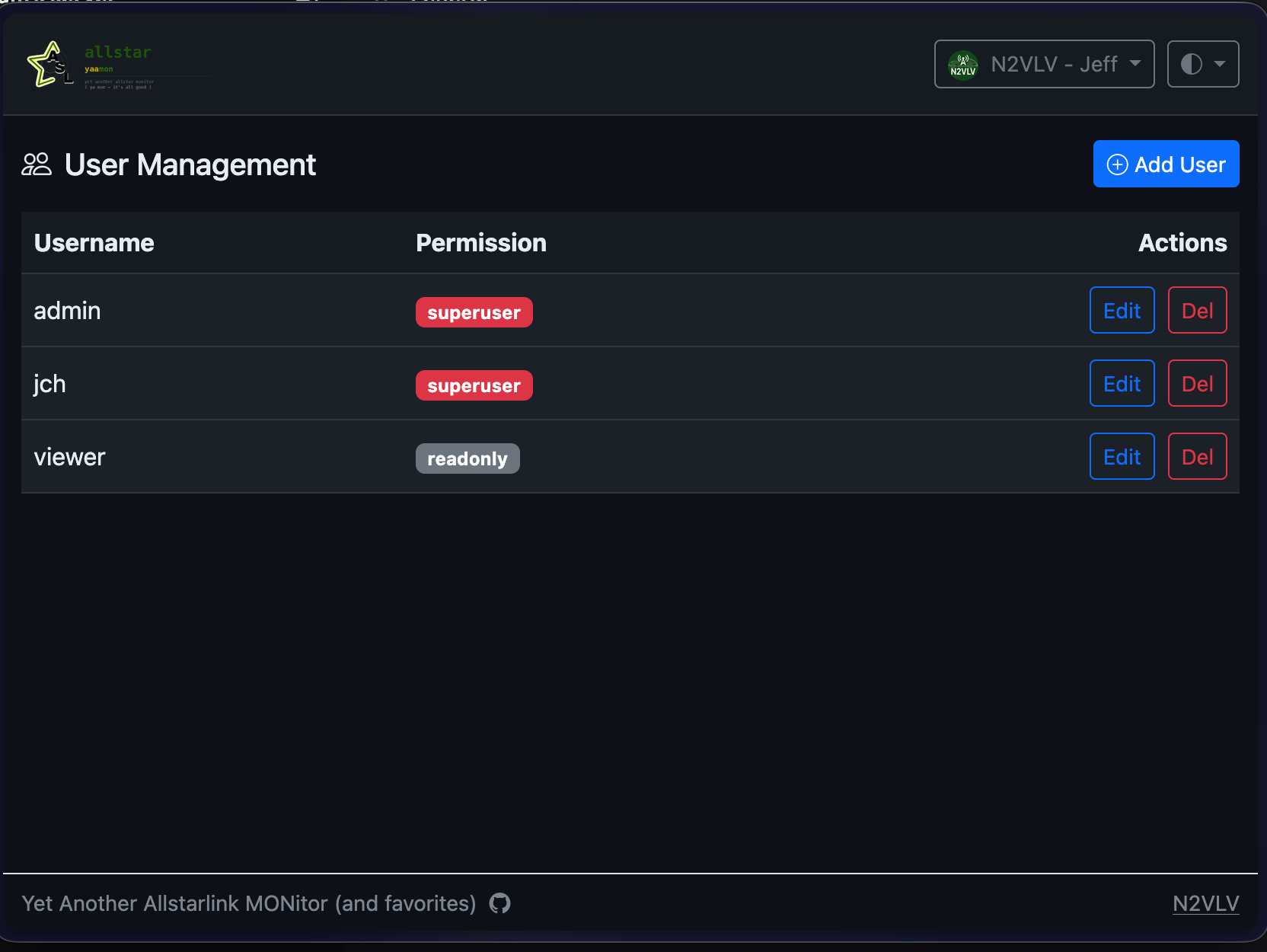
Go to Admin → Users.
Adding a user
Click Add User, enter a username and password, and choose a role. The user can log in immediately and change their own password from their profile.
Changing a user's role
Click the role badge next to the user's name and select a new role from the dropdown. Changes take effect on the user's next page load — the existing session is not invalidated, but the new permission level is checked on every request.
Deleting a user
Click the trash icon next to the user. You will be asked to confirm. If the user is currently logged in, their session becomes invalid on the next request.
You cannot delete or demote the last superuser account.
Resetting a password
Admins and superusers can reset any user's password from the Users page. Users can change their own password from My Profile.
Managing nodes
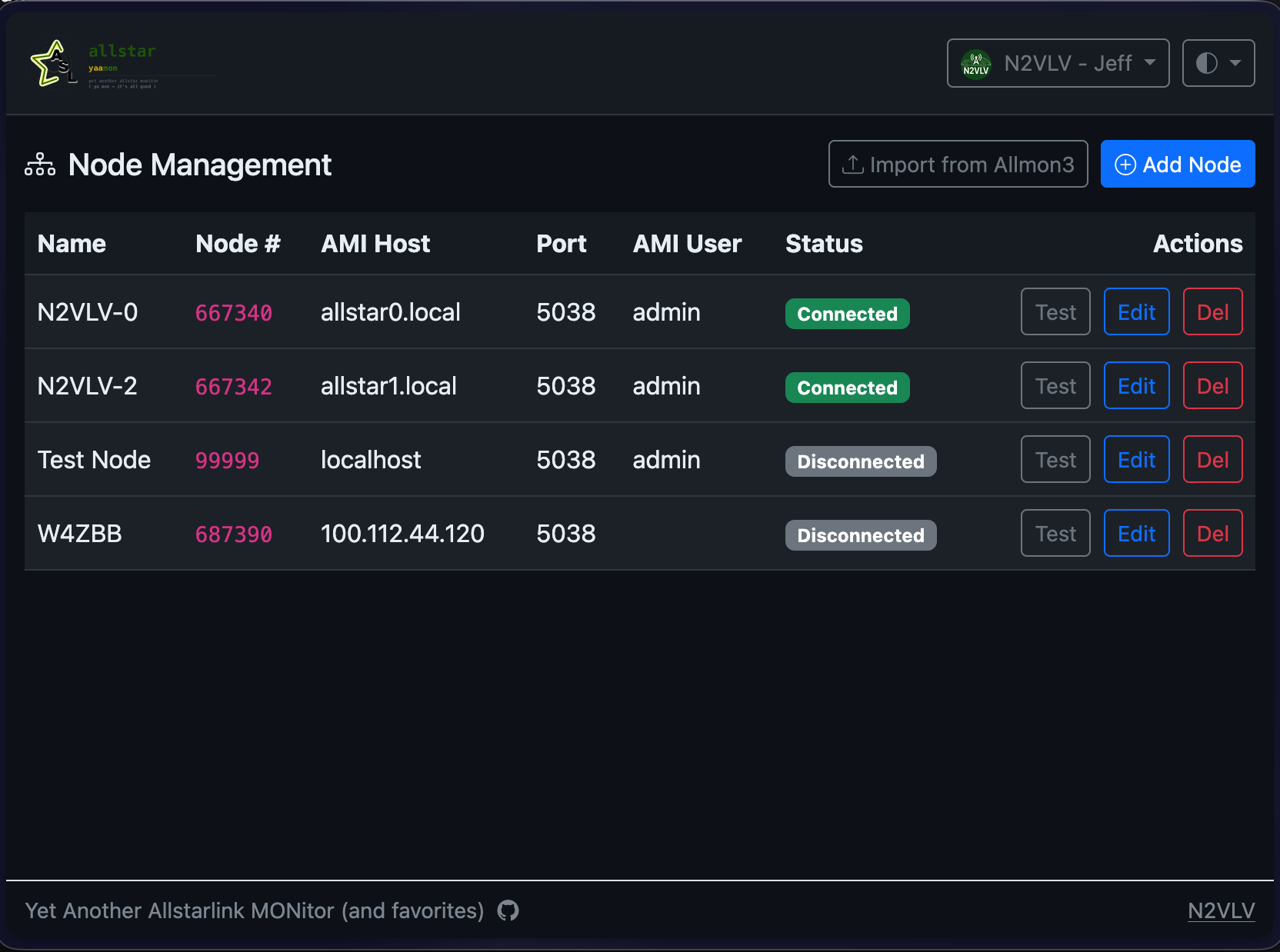
Go to Admin → Nodes.
Importing from Allmon3
Click Import from Allmon3 and upload your allmon3.ini file (usually /etc/allmon3/allmon3.ini). YAAMon parses the file and lists all nodes found. Nodes already in YAAMon are unchecked by default. Select the ones to import and confirm.
Imported nodes use the node number as the display name — rename them with the edit button. AMI credentials are read from the file.
Adding a node manually
Click Add Node and fill in:
| Field | Description |
|---|---|
| Name | A friendly label — use your call sign or a descriptive name |
| Node number | Your AllStarLink node number (digits only) |
| AMI host | Hostname or IP of the Asterisk server (localhost if on the same machine) |
| AMI port | Asterisk Manager port — default is 5038 |
| AMI username | The user defined in /etc/asterisk/manager.conf |
| AMI password | The secret for that manager user |
| Enabled | Uncheck to disable the AMI connection without deleting the node |
After saving, YAAMon connects to the AMI immediately. A green dot = live connection; red dot = connection failed.
For manager.conf configuration, see AMI Configuration.
Backup and restore
Go to Admin → Backup.
Creating a backup
Click Download Backup. YAAMon exports the entire database — users, nodes, favorites, and configuration — as a compressed .owbackup file. Optionally enter a passphrase to encrypt the backup.
From the command line:
yaamon backup -o /path/to/backup.owbackup
yaamon backup -o /path/to/backup.owbackup --passphrase "your passphrase"
Inspecting a backup
Prints the backup manifest (format, version, record counts, encryption status) without restoring.
Restoring
On the Backup page, click Restore and upload a .owbackup file. If the backup is encrypted, enter the passphrase. YAAMon takes an automatic safety backup of the current database before overwriting it.
From the command line:
yaamon restore /path/to/backup.owbackup
yaamon restore /path/to/backup.owbackup --passphrase "your passphrase"
Warning: Restore replaces the entire database. All current users, nodes, and favorites are overwritten.
Favicon
Admins can upload a custom favicon from Admin → Nodes (or Admin → Users — look for the favicon button). Supported formats: ICO, PNG.