Dashboards and Favorites
The Dashboard
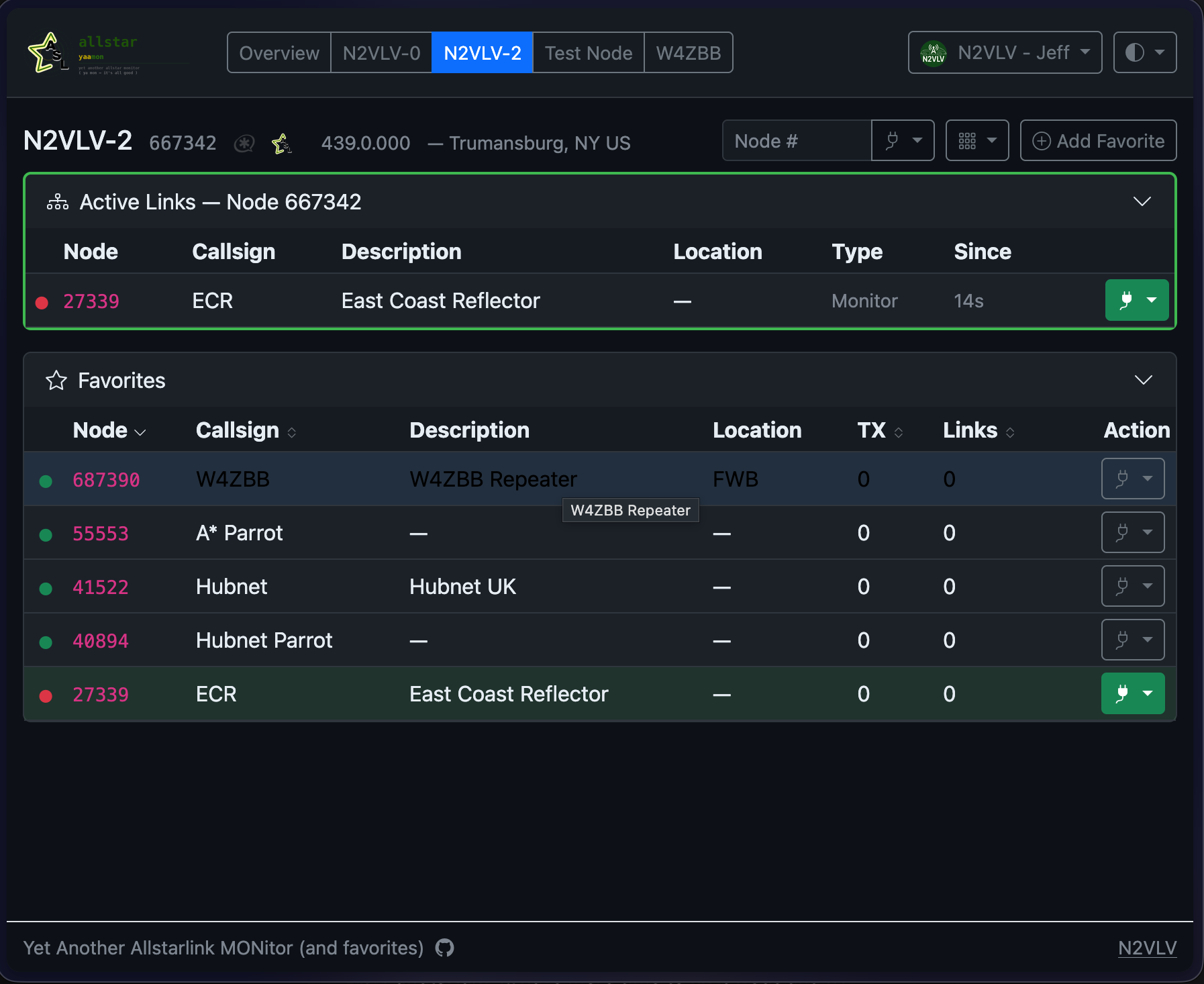
The dashboard is the main view. It shows live stats for your connected node(s) and lets you connect and disconnect.
Selecting a node
If you have more than one node, the navbar shows either a button group (on wider screens) or a dropdown (on narrow screens) with Overview and each of your nodes. Click a node name to switch to its dashboard. Click Overview for the multi-node summary.
Connecting to a favorite
Click any favorite button to send a connect command to that node via AMI. The button highlights when the connection is active. Click it again (or click Disconnect) to disconnect.
Live updates
The dashboard uses Server-Sent Events (SSE) to push live stats — you do not need to refresh the page. The connection indicator shows whether the live feed is active.
Node pages
Each node's dashboard shows:
Connection list
The active connections table lists every node currently linked, with:
- Node number (click to open the AllStarLink page for that node)
- Callsign and location (from the AllStarLink node database or configured overrides)
- Direction (inbound / outbound)
- Duration of the current connection
- Whether the remote node is currently keyed
Hovering over a callsign shows a tooltip with additional information from callook.info or QRZ.com.
Adding an active link as a favorite
On any active connection row, click the ⋯ button and choose Add as Favorite. The form pre-fills the node number, callsign, description, and location from the live connection data. The ⋯ button only appears for nodes that are not already in your favorites list.
Favorites panel
Your favorites for this node appear as buttons, organized by group. Buttons for active connections are highlighted. Click to connect; click again to disconnect.
Functions menu
The Functions button (grid icon, top-right of the node toolbar) opens a dropdown of node commands sent directly to Asterisk via AMI. Commands are grouped by type with labelled separators:
| Group | Commands |
|---|---|
| Announce | Say Time of Day, Force ID |
| Link | Reconnect |
| Status | Show Node Status, Show Link Status, Show IAX Registry, Show IAX Channels, Show Network Status, Show Uptime |
Commands that produce text output (status queries, registry listings) open a scrollable monospace modal. Commands that trigger audio or control actions (time announcement, ID, reconnect) show a brief "Command sent" confirmation.
The Functions button is disabled when the node's AMI connection is offline.
The command list is role-filtered — only commands whose configured role is at or below your session role are shown. The administrator can customise the list, add arguments, or restrict commands in config.yaml. See Node Commands.
Network graph
Click the graph icon on any connection row to open an interactive network graph showing how connected nodes link to each other. The graph is also available as a full-page view.
Favorites
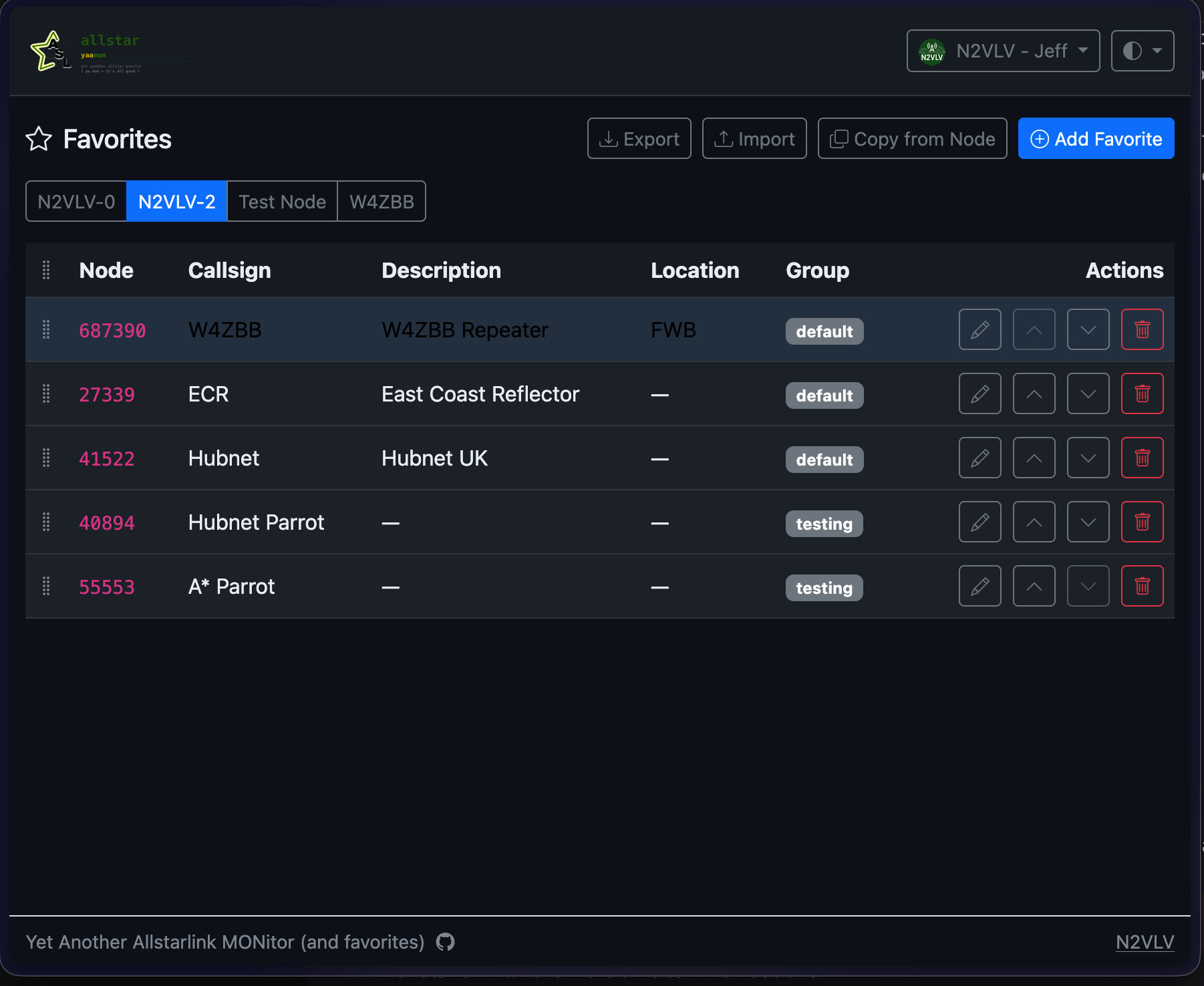
Favorites are the nodes you frequently connect to, organized per node. Go to Favorites (top-right menu, readwrite and above).
Adding favorites
Select the node you want to manage favorites for. Click the + in the Favorites card header to open the Add Favorite form, then fill in:
| Field | Description |
|---|---|
| Node number | The remote AllStarLink node number to connect to |
| Callsign | Optional — shown on the button (overrides ASL data) |
| Description | A longer label for the node (overrides ASL data) |
| Location | City, state, or other location info (overrides ASL data) |
| Group | Organize favorites into named groups (tabs on the dashboard) |
Manually configured callsign, description, and location override the values fetched from the AllStarLink node database.
Editing and deleting favorites
You can edit or delete a favorite directly from the dashboard without navigating to the Favorites settings page. Click the ⋯ button on any favorites row:
- Edit — opens the form pre-filled with the favorite's current values. The node number cannot be changed (delete and re-add if you need a different number).
- Delete — removes the favorite after confirmation.
Reordering
Drag and drop favorites within a group to reorder them. The order is saved immediately.
Copying favorites
Click Copy from node at the top of the Favorites page to copy all favorites from one node to another. Useful when you add a second node and want the same set of favorites.
Importing favorites from AllScan
On the Favorites page, click Import. Select your AllScan favorites.ini file (usually /var/www/html/allscan/favorites.ini). YAAMon parses the file, extracts node numbers and labels, and attempts to split each label into a callsign and description. A preview shows how many entries will be added and how many will be skipped (already exist). Confirm to import. Edit any favorite after import to correct the split if needed.