Your Profile
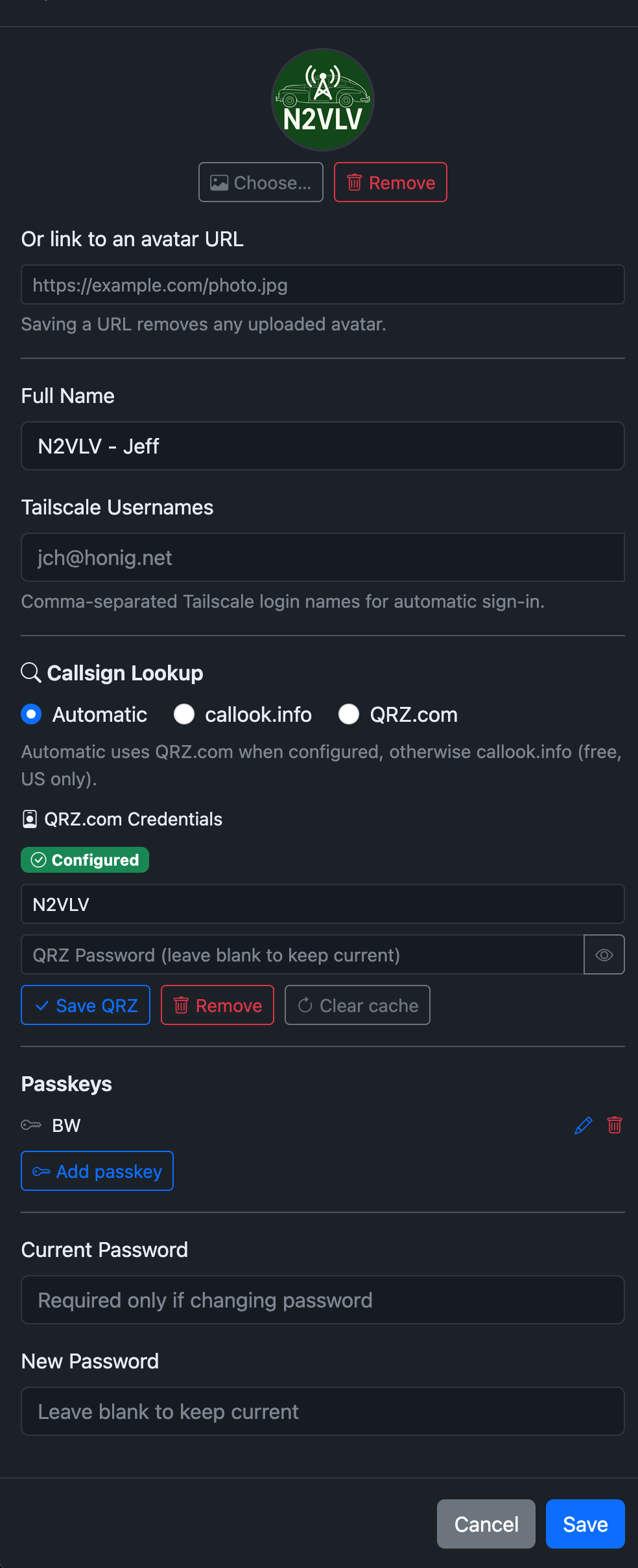
Click your name or avatar in the top-right corner and choose My Profile.
Avatar
You can set an avatar two ways:
- Upload an image — click Choose…, pick a PNG, JPEG, GIF, or WebP image (max 2 MB), then click Upload. The image is stored in YAAMon's database.
- Link to a URL — paste an external image URL into the "Or link to an avatar URL" field and save. The browser fetches the image directly from that URL on each page load.
Click Remove to clear the avatar entirely.
Full name
Enter your name in the Full Name field. It appears in the navbar dropdown in place of your username.
Password
Enter your current password and a new password to change it. Passwords must be at least 8 characters. Leave both fields blank to keep the current password.
Accounts created automatically by proxy auth (OAuth2) have password-based login disabled. The password fields are not available for those accounts. Use
yaamon user passwd <username>from the CLI to re-enable local login.
Tailscale usernames
If your site uses Tailscale authentication, enter your Tailscale login name (e.g. jch@honig.net) here. Separate multiple logins with commas. When a request arrives from Tailscale with a matching identity header, you will be logged in automatically without a password.
Callsign lookup
Choose which source to use for callsign lookups on the dashboard:
| Option | Description |
|---|---|
| Automatic | Uses QRZ.com when credentials are configured, otherwise callook.info (US only) |
| callook.info | Always use callook.info (free, US callsigns only) |
| QRZ.com | Always use QRZ.com (requires a QRZ.com subscription) |
To configure QRZ.com credentials, expand QRZ.com Credentials, enter your QRZ.com username and password, and click Save QRZ. Click Remove to clear stored credentials, or Clear cache to force fresh lookups.
See Callsign Lookup for details on caching and fallback behaviour.
Passkeys
The Passkeys section shows all registered passkeys for your account.
Registering a passkey
- Click Add passkey.
- Follow the browser prompt to create the credential (Touch ID, Face ID, Windows Hello, YubiKey, or a FIDO2 password manager like Bitwarden).
- Optionally give the passkey a descriptive name (e.g. "MacBook Pro Touch ID").
Signing in with a passkey
On the login page, click Sign in with passkey. The browser presents stored credentials for the site — no username or password needed.
Managing passkeys
- Rename — click the pencil icon next to any passkey.
- Delete — click the trash icon.
Safety guard
If a passkey is the last one on an account and the account has no password set, deletion is blocked with a 409 error. Set a password first, or add a second passkey, before removing the last one.
See Passkeys configuration for RPID/origins setup.
Themes
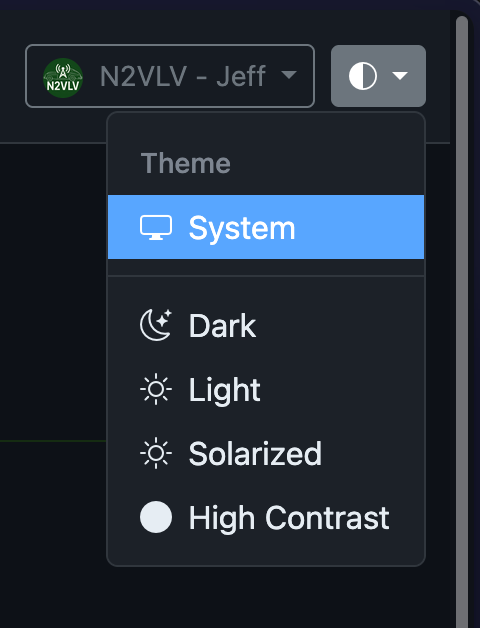
Click the half-circle icon in the top-right corner to switch themes:
| Theme | Description |
|---|---|
| System | Follows your OS dark/light mode preference |
| Dark | Dark background (default) |
| Light | Light background |
| Solarized | Solarized color palette |
| High Contrast | Maximum contrast for accessibility |
Your choice is saved in browser local storage and persists across sessions.